How to Design the Perfect Project Template in a Project Management Tool
Learn how to design the perfect project template with fields, phases, rules and automation.

Rasmus Rowbotham
Founder of Foundbase and experienced entrepreneur with over 10 years of experience in building and scaling businesses.
What is a project template?
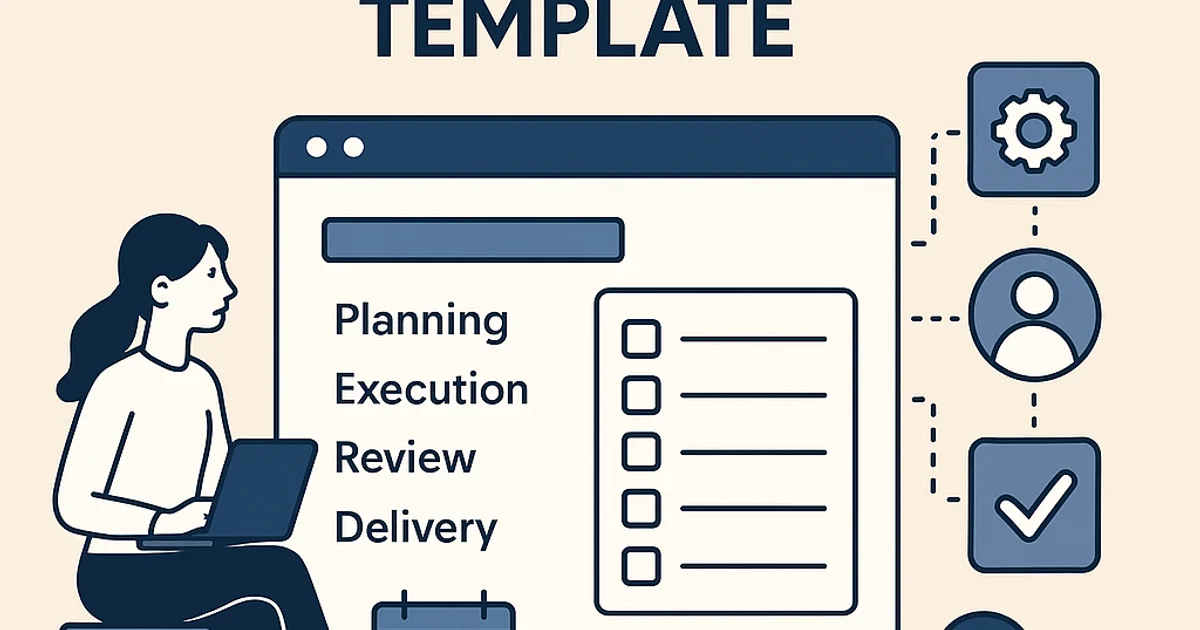
A project template is a predefined structure inside a project management tool that defines fields, phases, rules and default tasks. It ensures that new projects start consistently and can be tracked and reported correctly.
- Teams reduce project setup time by 40–60% when using templates.
- Planning errors drop by 20–25% with mandatory fields and checklists.
- Standardized phases increase delivery speed by 15% (sources: Atlassian, Asana, PMI).
- Forecasting improves because all projects follow the same structure.
- Leadership gets better reporting due to consistent data.
When should you use a project template?
Use templates when:- Multiple people need to start projects.
- You want consistent processes across customers or departments.
- You need clear data for reporting.
- Projects are highly experimental.
- The team is extremely small and structure slows them down.
Template vs workflow vs project plan
| Element | Definition | Use case |
|---|---|---|
| Template | Predefined structure | When starting new projects |
| Workflow | Status & rules | When managing flow |
| Project plan | Actual tasks | When executing |
How to build the perfect template
1. Set your core fields
- Project name
- Project owner
- Client/department
- Deadline
- Scope summary
- Estimated workload
2. Add phases
- Planning
- Execution
- Review
- Delivery
3. Insert default tasks per phase
Example:
- Kickoff
- Scope clarification
- QA testing
4. Add automations
- If status changes → create tasks
- If deadline changes → notify owner
- If phase ends → open next phase
Before / After
Before
Projects vary, lack information and start inconsistently.
After
Projects start predictably with full information.
Trade-offs
- Too rigid = less creativity
- Too loose = chaos
- More fields = better data, harder adoption
90-day plan
- Weeks 1–2: Define fields
- Weeks 3–5: Build template
- Weeks 6–8: Test
- Weeks 9–12: Roll out to full team
Try a free project management tool: free project tool
Frequently asked questions
Q: What should a project template include?
It should include fields, phases, checklists, roles and automations that ensure consistent starts.
Q: How do I know if my template is too complex?
If onboarding takes more than 10 minutes, it's likely too heavy.
Q: Do small teams need templates?
Yes, but keep them lightweight with minimal fields and simple structure.
Related guides
Project management for digital nomads: Expert guide
Discover how to effectively manage projects as a digital nomad. Gain insights into tools and tips for productivity and collaboration on the go.
Rasmus Rowbotham
Remote project management tools: boost productivity
Discover the top remote project management tools to enhance collaboration within your team. Learn how to optimize productivity effectively.
Rasmus Rowbotham
Project management for social startups: Effective techniques
Gain insights on optimizing project management for social startups. Discover sustainable tools and techniques that promote success and impact.
Rasmus Rowbotham